Understanding ETL Jobs and Scheduling
-
Introduction to ETL Jobs and Scheduling
In today’s fast-paced IT environments, managing data efficiently is crucial for operational success. ReadyWorks is a platform designed to streamline data management by automating the integration of data from various sources. Central to this functionality are ETL (Extract, Transform, Load) jobs, which handle the importing and processing of data into ReadyWorks.
This guide is intended for IT professionals, system administrators, and anyone involved in data management within ReadyWorks. It provides an easy-to-follow, step-by-step understanding of ETL jobs and their scheduling mechanisms, ensuring that you can configure and manage them effectively to meet your organization’s data needs.
Why ETL Jobs Matter
- Data Integration: ETL jobs bring together data from different sources into a unified platform.
- Automation: They automate repetitive data import tasks, saving time and reducing errors.
- Data Consistency: Ensure that the data in ReadyWorks is up-to-date and consistent with external systems.
- Operational Efficiency: Streamline processes by having the right data available when needed.
Understanding ETL Jobs in ReadyWorks
An ETL job in ReadyWorks is a configured task that:
- Extracts data from an external source (e.g., databases, CSV files, APIs).
- Transforms the data as needed (e.g., formatting, filtering).
- Loads the data into ReadyWorks’ staging tables for further processing or direct use.
-
Key Components of an ETL Job
When configuring an ETL job, several settings determine how it operates:
1. Job Name
- What It Is: A descriptive name for the ETL job.
- Why It Matters: Helps identify the job among others, especially when managing multiple jobs.
-
Best Practices:
- Use clear, descriptive names (e.g., “Daily SCCM Computer Import”).
- Include the data source and purpose in the name.
2. Active Status
- What It Is: Determines if the job is enabled and will run as scheduled.
- Why It Matters: Inactive jobs won’t execute, allowing you to control which jobs are operational.
-
Best Practices:
- Set to Active when the job is ready for production.
- Use Inactive status for jobs under development or testing.
3. Allow Empty Tables
- What It Is: Decides whether to create a staging table if the data source returns no data.
-
Why It Matters:
- Yes: Creates an empty table, which may prevent errors in downstream processes expecting the table.
- No: Skips table creation, which can save resources if the absence of data is acceptable.
-
Best Practices:
- Set to Yes if downstream processes require the table’s existence.
- Set to No to avoid unnecessary empty tables.
4. Destination Table
- What It Is: The name of the staging table where data will be loaded in ReadyWorks.
- Why It Matters: It’s the table you’ll reference in data mappings and other processes.
-
Best Practices:
- Ensure the name is unique and descriptive.
- Match the naming convention used in your organization.
5. Data Identity
- What It Is: An identifier used when dealing with multiple data sources or environments.
- Why It Matters: Helps distinguish between data from different sources or environments (e.g., production vs. test).
-
Best Practices:
- Keep it the same as the destination table unless you have multiple data sources.
6. Job Schedule
- What It Is: Specifies when the job runs—Hourly, Daily, or Weekly.
- Why It Matters: Aligns data imports with your organization’s data refresh needs.
-
Best Practices:
- Hourly: For frequently changing data requiring constant updates.
- Daily: For data that changes daily or doesn’t need immediate updates.
- Weekly: For static data or data that doesn’t change often.
7. Order
- What It Is: Defines the execution order of jobs with the same schedule.
- Why It Matters: Ensures jobs run in a specific sequence, especially when one job depends on the output of another.
-
Best Practices:
- Assign lower numbers to higher-priority jobs.
- Adjust order numbers to manage dependencies.
8. Fields to Index
- What It Is: Lists columns to index in the staging table for faster data retrieval.
- Why It Matters: Improves performance during data mapping and querying.
-
Best Practices:
- Index columns frequently used in joins or filters.
- Separate multiple columns with commas (e.g., “ComputerName, SerialNumber”).
9. Data Selection (SQL Query)
- What It Is: The SQL query or command that extracts data from the source.
- Why It Matters: Defines the actual data retrieved and loaded into ReadyWorks.
-
Best Practices:
- Write efficient queries that only select necessary data.
- Test queries in a SQL editor before using them in the ETL job.
-
Configuring an ETL Job: Step-by-Step Guide
Step 1: Access ETL Jobs in ReadyWorks
-
Action:
- Log into ReadyWorks.
- Navigate to ETL Jobs from the main menu.
- Tip: Familiarize yourself with existing jobs to understand how they’re configured.
Step 2: Create a New ETL Job
-
Action:
- Click on New Job.
- Choose to start with a blank template or clone an existing job if similar.
- Tip: Cloning can save time if you’re importing similar data from the same source.
Step 3: Configure General Settings
- Job Name: Enter a descriptive name.
- Active: Set to Yes to enable the job.
- Allow Empty Tables: Decide based on whether downstream processes require the table.
- Destination Table: Provide a unique name (e.g., “cm_custom_data”).
- Data Identity: Usually matches the destination table unless differentiating between data sources.
Step 4: Set the Job Schedule and Order
- Job Schedule: Select Hourly, Daily, or Weekly.
- Order: Assign a number (e.g., 1 for the first job to run).
Step 5: Specify Fields to Index (Optional)
-
Action:
- In the Fields to Index field, list columns to index.
-
Example:
- ComputerName, LastLoggedOnUser
- Tip: Only index columns used in joins or filters to optimize performance.
Step 6: Define the Data Selection Query
-
Action:
- Enter your SQL query in the Data Selection field.
- Example: SELECT ComputerName, LastLoggedOnUser, OSVersion FROM SCCM_Computers
- Tips:
-
- Test your query in a SQL client to ensure it works.
- Ensure you have the necessary permissions to access the data source.
Step 7: Save and Activate the ETL Job
-
Action:
- Review all configurations.
- Click Save to store the job.
- Tip: Double-check that the job is set to Active if you want it to run according to the schedule.
-
Action:
-
ETL Job Scheduling
Overview
ETL job priority in ReadyWorks is a critical system that dictates the execution order of data processing jobs, ensuring data integrity, consistency, and availability for downstream processing and analytics.
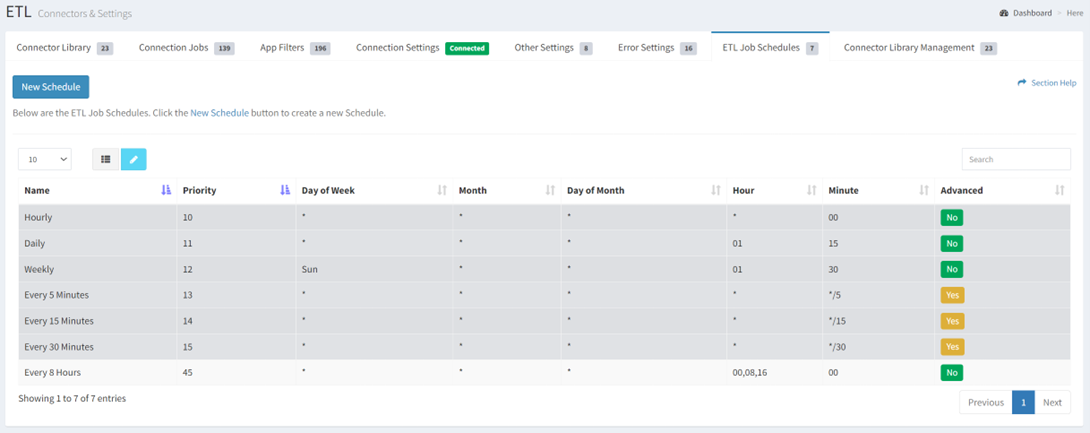
Job Scheduling Management
-
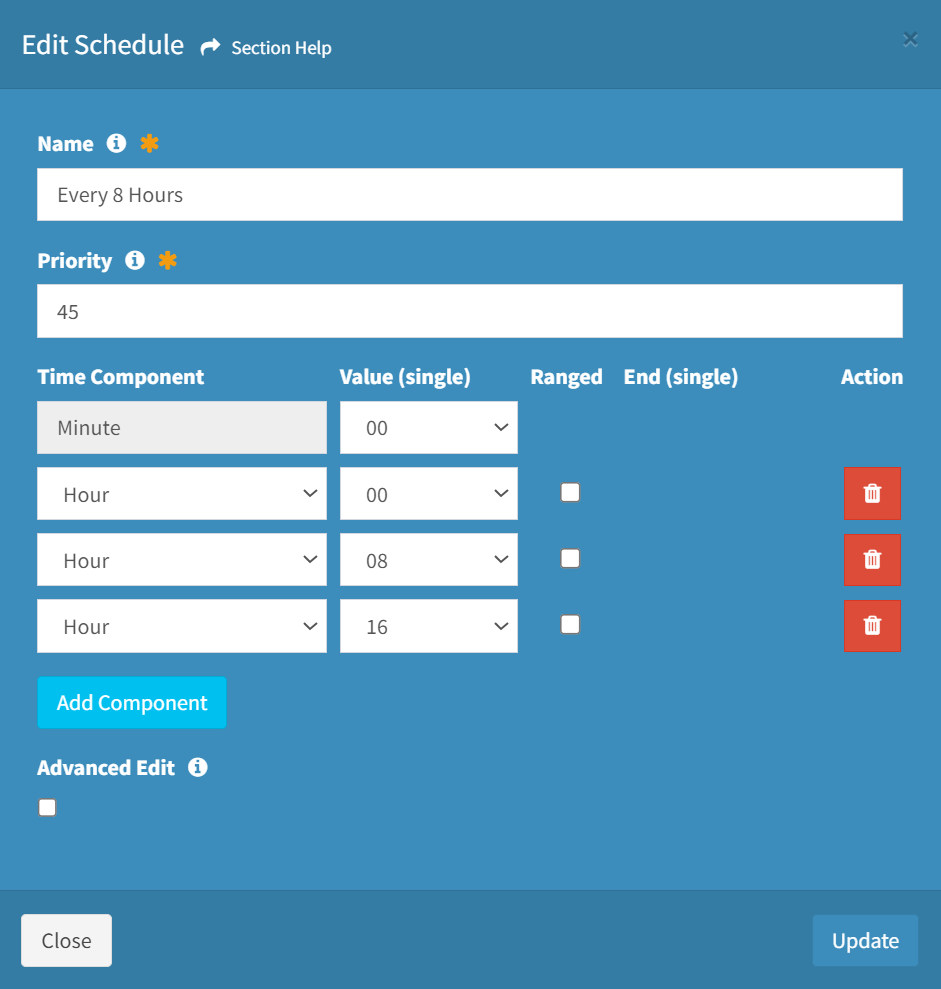
- Edit ETL job schedules by selecting a job schedule (row) and clicking the Edit Schedule button on the toolbar
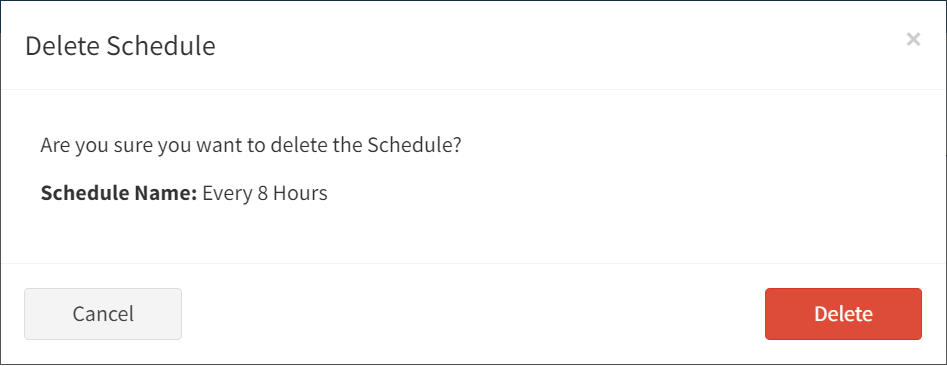
- Delete ETL job schedules by selecting a job schedule (row) and clicking the Delete Schedule button on the toolbar
Processing Model: Parallel and Sequential Execution
ReadyWorks ETL jobs operate in a hybrid model:
-
Parallel Execution: Multiple jobs can run simultaneously when configured to run in the background
- Default allows 3 jobs to run in parallel
- This limit can be adjusted based on system memory capacity (e.g., ReadyWorks Developers up to 15 for test environments)
-
Sequential Ordering Within Parallel Processing:
-
When more jobs are queued than can run in parallel, the system determines execution order based on:
- Scheduled time (jobs scheduled earlier run first)
- For jobs scheduled at the same time, priority number determines which jobs get allocated to the available parallel slots first
-
When more jobs are queued than can run in parallel, the system determines execution order based on:
-
Sequential Data Processing:
- While multiple jobs may run simultaneously, the priority system ensures data dependencies are respected
- Jobs with dependencies are properly sequenced to maintain data integrity
- This prevents race conditions where one job might need data from another job that hasn’t completed
Why ETL Job Priority Matters
The priority system ensures that data is:
- Complete, with dependent jobs properly sequenced
- Consistent, so data makes sense when viewed over time
- Available for downstream ReadyWorks processing and analytics
ETL Database Structure
- ETL data is stored in staging tables that maintain the schema of source system tables
- The ETL Module decomposes JSON responses from the ETL pipeline
- Staging tables serve as a “litmus point” to determine if data issues are upstream or downstream
Troubleshooting with ETL Staging Tables
When investigating data discrepancies:
-
If ReadyWorks UI data conflicts with expected information:
- Check Staging Table data first
- If Staging Table data matches the discrepancy, investigate upstream of ReadyWorks
- If Staging Table data shows expected values but UI shows different values, investigate Data Mappings
Special Note on Asset Rules
Asset Rules operate differently from standard ETL jobs:
- Asset Rules do not use CRON jobs or follow ETL Job Scheduling/Priority
- Asset Rules are event-triggered rather than schedule-based
- They run whenever a value in the data changes
- They immediately execute the associated rule and subsequent action without waiting for scheduled intervals
Importance of ETL Job Priority
Data Integrity and Processing Order
- Proper job prioritization manages dependencies and prevents race conditions
- The system balances parallel execution (for efficiency) with proper sequencing (for data integrity)
- Dependencies are respected, ensuring data is written properly
ReadyWorks advises Administrators to Use Caution when Running ETL or CRON jobs out of sync to maintain the data integrity.
Summary
The ETL job priority system ensures that data processing occurs with the right balance of efficiency (through parallel processing) and proper sequencing (through priority management). This supports business processes while maintaining system stability and data integrity.
-
-
Performance Optimization and Best Practices
Performance Optimization Strategies
Efficient ETL jobs minimize system load and ensure timely data availability.
1. Indexing Fields
-
Why Index:
- Speeds up data retrieval during data mapping and querying.
-
How to Index:
- Specify columns in the Fields to Index field during job configuration.
-
Best Practices:
- Only index columns that are frequently used in data mappings.
2. Optimizing SQL Queries
-
Select Specific Columns:
- Avoid SELECT *; specify only the columns you need.
-
Use Filtering:
- Apply WHERE clauses to limit data to what’s necessary.
3. Scheduling Considerations
-
Run During Off-Peak Hours:
- Schedule resource-intensive jobs when system usage is low.
-
Stagger Job Start Times:
- If multiple jobs run on the same schedule, adjust their Order or start times.
Best Practices and Tips
Testing Before Deployment
-
Test Queries:
- Always test SQL queries in a separate SQL client.
-
Use a Development Environment:
- If possible, configure and test ETL jobs in a non-production environment.
Documentation
-
Record Configurations:
- Document all ETL job settings, schedules, and queries.
-
Change Management:
- Keep track of changes made to ETL jobs for auditing and troubleshooting.
Error Handling
-
Review Error Logs:
- Regularly check logs to catch and resolve errors promptly.
Collaboration
-
Work with Data Source Owners:
- Coordinate with teams managing data sources like SCCM to understand data structures and permissions.
-
Regular Reviews:
- Periodically review ETL jobs to ensure they align with current data needs.
Understanding Dependencies and Order
-
Job Dependencies:
- If one ETL job relies on the output of another, ensure they are scheduled in the correct order.
-
Cron Job Dependencies:
- In ReadyWorks versions supporting ETL 5, you can specify that a cron job waits for specific ETL jobs to complete.
-
Why Index:
-
Example Scenario: SCCM Data Pull
Scenario: You need to import computer inventory data from SCCM into ReadyWorks daily.
Configuration Steps:
-
Create the ETL Job:
- Job Name: “Daily SCCM Computer Import”
- Active: Yes
- Allow Empty Tables: Yes
- Destination Table: cm_computer_inventory
- Data Identity: cm_computer_inventory
- Job Schedule: Daily
- Order: 1
- Fields to Index: ComputerName
-
Data Selection Query:
-
SELECT ComputerID, ComputerName, OperatingSystem, LastUser
FROM SCCM_Computers
WHERE IsActive = 1
-
SELECT ComputerID, ComputerName, OperatingSystem, LastUser
-
Set Up Data Mapping:
- Create a data mapping to transfer data from the staging table to the Computers asset type.
- Schedule the mapping to run after the ETL job completes.
-
Monitor and Test:
- Run the ETL job manually to test.
- Verify that data appears correctly in ReadyWorks.
- Check logs for any errors.
-
Create the ETL Job:
-
ETL Jobs and Scheduling Conclusion
Effectively configuring and scheduling ETL jobs in ReadyWorks is essential for maintaining accurate and up-to-date data within your organization. By understanding the components and settings of ETL jobs, you can tailor the data import process to meet your specific needs.
Key Takeaways:
- Plan Carefully: Understand your data requirements and dependencies.
- Optimize Performance: Use indexing and efficient SQL queries.
- Monitor Regularly: Keep an eye on job executions and system performance.
- Document Everything: Maintain detailed records of configurations and changes.
<span;">By following these guidelines, you’ll ensure that your data management processes in ReadyWorks are robust, efficient, and aligned with your organizational goals.</span;">