Various modules and features are available in ReadyWorks. The Modules tab on the Options page provides the ability to enable and disable ReadyWorks modules and features. To use a feature within one of these modules, it must first be enabled. Modules should only be enabled if they further the use case being deployed.
Typically Modules are enabled by shifting the toggle from RED to GREEN. In the example below, all modules are enabled.
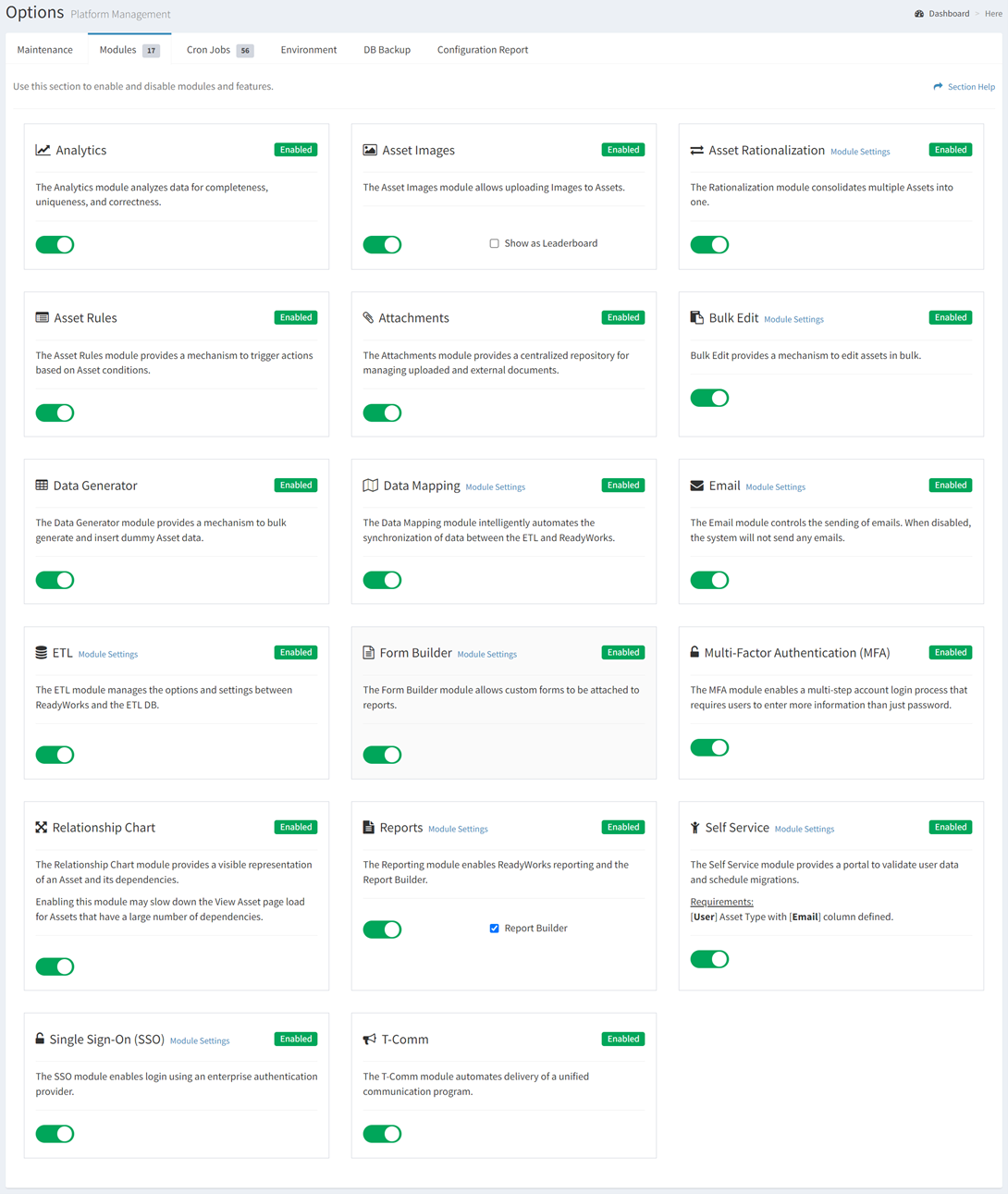
|
Module |
Description |
|
Analyzes data for completeness, uniqueness, and correctness |
|
|
Upload images to assets, for uses such as OCR |
|
|
Consolidates multiple dissimilar assets into fewer categories |
|
|
Condifitional actions triggered by asset consditions |
|
|
Enables the attachment of uploaded file and/or external documents |
|
|
Provides a mechanism to edit many assets at once |
|
|
Provides a mechanism to bulk generate and insert dummy Asset data |
|
|
Automates the synchronization of data between the ETL and ReadyWorks |
|
|
Controls the sending of emails. When disabled, ReadyWorks will not send any emails. |
|
|
Manages the options and settings between ReadyWorks and the ETL DB |
|
|
Build custom forms to attach to reports |
|
|
Enables a multi-step account login process that requires users to enter more information than just password |
|
|
Provides a visible representation of an Asset and its dependencies |
|
|
Enables ReadyWorks reporting and the Report Builder |
|
|
Provides a portal to validate user data and schedule migrations |
|
|
Enables login to ReadyWorks using your enterprise authentication provider |
|
|
Coordinates triggered communications based on conditions within assets. |