Getting Started
Overview
See all articlesOverview of ReadyWorks for New Users
Introduction to ReadyWorks
Welcome to ReadyWorks! This guide is designed to help you understand how to use ReadyWorks effectively, especially if you're new to the platform. We'll walk you through the key concepts, explain the steps you'll take, and most importantly, help you understand how data flows through the system.
What is ReadyWorks?
ReadyWorks is a powerful platform designed to help organizations manage their assets efficiently. It acts as a Digital Platform Conductor, integrating various systems and providing a unified view of your asset estate, supporting processes, and corresponding data. Whether you're upgrading to Windows 11, migrating VM hypervisors, or orchestrating complex operational processes, ReadyWorks helps you streamline operations by connecting to different data sources, consolidating information, and automating workflows.
Key Features and Capabilities
1. Enterprise-Grade Automation:
ReadyWorks offers a robust automation platform that integrates with a wide range of enterprise systems through its ETL (Extract, Transform, Load) capabilities. This allows it to ingest and normalize data from disparate sources, such as device management systems, ticketing tools, and business applications, offering a consolidated view for better decision-making. The platform excels in handling data migration, device refresh projects, and IT operations at scale.
ReadyWorks offers a robust automation platform that integrates with a wide range of enterprise systems through its ETL (Extract, Transform, Load) capabilities. This allows it to ingest and normalize data from disparate sources, such as device management systems, ticketing tools, and business applications, offering a consolidated view for better decision-making. The platform excels in handling data migration, device refresh projects, and IT operations at scale.
2. Centralized Data Management and Insights:
Once data is ingested, ReadyWorks maps it into structured asset tables through SQL-driven processes, ensuring consistent and rationalized records. It offers custom reporting and dashboards that provide clear insights into key metrics, such as asset utilization and compliance, which can be tailored to business needs.
Once data is ingested, ReadyWorks maps it into structured asset tables through SQL-driven processes, ensuring consistent and rationalized records. It offers custom reporting and dashboards that provide clear insights into key metrics, such as asset utilization and compliance, which can be tailored to business needs.
3. Self-Service and Workflow Automation:
ReadyWorks includes a Self-Service Portal that allows end-users to engage directly with their assigned assets, triggering workflows like device refreshes or updates through TCOMMs (Triggered Communications). These communications are critical for ensuring user participation in large-scale initiatives such as system upgrades or migrations.
ReadyWorks includes a Self-Service Portal that allows end-users to engage directly with their assigned assets, triggering workflows like device refreshes or updates through TCOMMs (Triggered Communications). These communications are critical for ensuring user participation in large-scale initiatives such as system upgrades or migrations.
4. Waves for Bulk Operations:
The platform is built to handle large-scale operations through the use of “Waves,” where related assets can be grouped and processed together. This feature is particularly useful in migration and refresh scenarios, allowing IT teams to efficiently manage thousands of assets simultaneously.
The platform is built to handle large-scale operations through the use of “Waves,” where related assets can be grouped and processed together. This feature is particularly useful in migration and refresh scenarios, allowing IT teams to efficiently manage thousands of assets simultaneously.
5. Governance and Compliance:
ReadyWorks ensures that governance and compliance are maintained across workflows by offering detailed audit trails, real-time monitoring, and the ability to enforce policies across all users. This is critical for organizations managing sensitive corporate data and seeking to ensure security and data integrity throughout their operations.
ReadyWorks ensures that governance and compliance are maintained across workflows by offering detailed audit trails, real-time monitoring, and the ability to enforce policies across all users. This is critical for organizations managing sensitive corporate data and seeking to ensure security and data integrity throughout their operations.
6. Integrations and Extensibility:
ReadyWorks integrates seamlessly with external systems through its ETL connectors, supporting both cloud and on-premises environments. The platform also offers REST API support, allowing organizations to extend its capabilities or connect to systems not natively supported by ReadyWorks, without requiring complex custom development.
ReadyWorks integrates seamlessly with external systems through its ETL connectors, supporting both cloud and on-premises environments. The platform also offers REST API support, allowing organizations to extend its capabilities or connect to systems not natively supported by ReadyWorks, without requiring complex custom development.
7. ReadyWorks for IT and Business Users:
The platform is designed to be usable by both technical IT staff and business users, providing powerful tools for automation that don’t require extensive coding knowledge. This citizen integrator approach ensures that both groups can benefit from the same productivity enhancements.
The platform is designed to be usable by both technical IT staff and business users, providing powerful tools for automation that don’t require extensive coding knowledge. This citizen integrator approach ensures that both groups can benefit from the same productivity enhancements.
In summary, ReadyWorks provides a comprehensive solution for automating workflows, managing assets, and integrating data across your organization, helping businesses achieve operational efficiency and improved governance.
The ReadyWorks User Interface
|
Located on the left side of the User Interface, the Navigation Menu is divided into sections for PROJECT, ASSETS and ADMIN |
|
|
Located to the right of the Navigation Menu, this area displays the pages for each ReadyWorks module |
|
|
Located on the top blue bar, the User Menu is divided into sections for Favorites, User Guide, Online Users, Pending Tasks and Logged On User |
|
|
Located at the top right of the User Interface, the Settings menu is divided into sections for Options and About |
|
|
Located on the top left of the User Interface and above the Navigation Menu, the global Search box is available to search the Name field and Text fields (with Global Search enabled) of entries stored in ReadyWorks (e.g. assets, list items, waves, tasks, etc.) |
Understanding the Data Flow in ReadyWorks
Before diving into the steps, it's crucial to understand how data moves through ReadyWorks. Here's an overview:
- Data Sources (Connectors): ReadyWorks connects to various external systems (like SCCM, Active Directory, etc.) using Connectors to extract data.
- ETL Module (Extract, Transform, Load): The data extracted from these systems is brought into ReadyWorks through the ETL Module, where it is temporarily stored in Staging Tables.
- Data Mapping: The data from the staging tables is then transformed and mapped into the appropriate Asset Types within ReadyWorks using Data Mappings.
- Asset Types: Asset Types represent the categories of items you're managing (e.g., Computers, Users, Printers). They store the structured data ready for use.
- Reports and Dashboards: Finally, the data within Asset Types can be used to create Reports and Dashboards, providing insights and enabling decision-making.
Understanding this flow is essential because each step builds upon the previous one. By the end of this guide, you'll see how data moves from external sources into meaningful information within ReadyWorks.
Key Data Flow Concepts and Terms
Asset Types
Why are Asset Types important?
Asset Types are the backbone of ReadyWorks. They define how data is organized and presented within the platform. By properly setting up Asset Types, you ensure that the data is structured in a way that reflects your organization's needs.
Assets vs. Lists:
- Assets: Represent primary items (e.g., Computers, Users) and appear prominently in the navigation menu.
- Lists: Serve as lookup tables or control lists (e.g., Locations, Models) and help maintain data consistency.
Example:
If you're managing printers, creating a "Printer" Asset Type allows you to store all relevant printer data in one place. You might also create a "Printer Model" list to standardize model names.
ETL Module (Extract, Transform, Load)
Why use the ETL Module?
The ETL Module is essential for bringing data from external systems into ReadyWorks. It ensures that data is extracted accurately, transformed as needed, and loaded into the platform for use.
- Connectors: Pre-built integrations that know how to communicate with external systems.
- Jobs: Specific tasks within connectors that define what data to extract.
- Staging Tables: Temporary storage where the raw data is held before mapping.
Data Flow Insight:
Data moves from the external system into ReadyWorks through Connectors and is stored in Staging Tables. Understanding the structure of this data is crucial for the next step—Data Mapping.
Data Mapping
Why is Data Mapping crucial?
Data Mapping is where you transform and organize the raw data into meaningful information that fits your Asset Types. This step is vital because it allows you to clean, combine, and structure data before it becomes part of your main dataset.
- SQL Queries: Used to manipulate and combine data from staging tables.
- Mapping to Asset Types: Assigns the transformed data to the correct fields in your Asset Types.
Data Flow Insight:
Data from the Staging Tables is transformed through SQL queries and mapped to the Asset Types. This is where raw data becomes structured, actionable information.
Reports and Dashboards
Why build Reports and Dashboards?
Reports and Dashboards help you visualize and analyze the data within your Asset Types. They provide insights that can drive decision-making and reveal trends or issues that need attention.
- Report Builder: A tool to create custom reports using data from Asset Types.
- Visualization: Charts, graphs, and tables that present data in an understandable format.
Data Flow Insight:
Data within Asset Types is used to generate reports and dashboards, providing the end-users with meaningful insights derived from the data flow starting from the external sources.
Accessing the ReadyWorks Platform
Objective: Familiarize yourself with the ReadyWorks interface. Contact your local ReadyWorks Administrator or contact to obtain the URL for your unique instance. Your ReadyWorks environment may be hosted either on-premises or in the cloud.
- Login: Use your credentials to access ReadyWorks. If your environment has been configured, no additional credentials are needed. For 'native' ReadyWorks accounts not tied to SSO, your ReadyWorks Administrator can provide credentials and reset your password.
- Navigation Menu: Located on the left side, it includes sections like Assets, Reports, and Admin options.
Why this step is important:
Understanding the layout of the platform will make it easier to navigate through the next steps. Familiarity with the interface reduces the learning curve and helps you locate features quickly.
Glossary of ReadyWorks Terms
| Term | Definition |
| Access Control List (ACL) | A list of permissions attached to an object that specifies which users or system processes are entitled with access. |
| Active Directory | Active Directory (AD) is the on-premises directory service that serves as the golden source for user data. |
| Asset Disposition | The process of disposing, recycling, or repurposing assets that are no longer needed. |
| Asset Refresh | The process of replacing aging or outdated assets, such as computers or devices, with newer models. |
| Asset Rule | Asset Rules are a ReadyWorks module that allows for cascading activities based on pre-defined conditions of an asset. |
| Asset Table | A table for post Data Mapping data aligned with a specific type of entity or device, such as computers, users, or locations. It defines the schema and fields, allowing data to be stored, managed, and reported on within the Management Interface. |
| Asset Tag | A unique identifier assigned to an asset for tracking purposes. |
| Bulk Edit | A ReadyWorks feature that allows Users to make changes to multiple records simultaneously. |
| CMDB | Configuration Management Database, a repository that acts as a data warehouse for IT assets and services. |
| Connector | The ReadyWorks component that supports authentication in order to run data pulls into ReadyWorks Staging Tables |
| CRON (Jobs) | Time-based job scheduling tool that allows scheduled commands or scripts to run automatically at specified times or intervals. |
| CSV file | Comma-Separated Values file; a plain text file that contains a formatted list of data ready for ingestion into ReadyWorks. |
| Data Mapping | The ReadyWorks module that supports defining SQL rules and transformations to map Staging Table fields to corresponding fields into the Asset Table schemas for Analysis and Orchestration. |
| End User | The community that exclusively users ReadyWorks through the Self-Service Portal and possess no entitlements to access the Management Inteface. |
| ETL Engine | The Extract, Transform, Load engine in ReadyWorks houses Connectors to your source data systems and runs jobs on a scheduled basis using CRONs; the result of a successful ETL pull are Staging Tables. |
| ETL Pull | The call for data from a source system by the ETL Engine, when using a REST API this is a GET request. The pulls resulting Staging Tables. |
| Front End | See’ Management Interface’ |
| ICS file | A file format used for exchanging calendar and scheduling information between different applications. |
| Identity Provider (IdP) | Acts as a centralized authority responsible for verifying user credentials and issuing security assertions that confirm the user's identity. These assertions are then used by other applications like ReadyWorks to grant differentiated access to authenticated users without requiring separate logins. |
| Lifecycle Status | A field used to track the state of an asset, such as deployed, in stock, at capacity, etc. |
| Management Interface | The ReadyWorks Graphical User Interface; a visual way for users to interact with the platform. Requires a logon to ReadyWorks. |
| Orchestration | Involves setting up and managing sequences of actions within ReadyWorks that are triggered based on specific conditions or schedules, enabling ReadyWorks to efficiently orchestrate complex workflows. |
| ReadyWorks | A software platform that automates and streamlines IT asset management processes, including asset refreshes. |
| REST API | Representational State Transfer Application Programming Interface: a type of API that uses HTTP requests to GET, PUT, POST, and DELETE data. |
| Self-Service Portal | A web-based interface that enables End Users to interact with entitled data to facilitate processes via a personalized webpage. Users can view and edit data about their assigned assets, and self-schedule activities, End-Users do not have full login entitlements. |
| Single-Sign On (SSO) | Authentication method that allows for users to access multiple applications or services with a single set of credentials managed by an single Identify Provider across the organization. |
| Staging Tables | Temporary tables used to store raw (or lightly processed) source system data before it is transformed and loaded into the final linked Asset Tables via Data Mapping. |
| T-Day |
Refers to the start date of a wave and is used as the reference point for scheduling triggered communications (TCOMMs) and other orchestrated activities.
For example, a TCOMM might be scheduled to be sent out at T-Day minus 2 (T-2), meaning two days before the start of the wave. This allows for automated communication and reminders to be sent to end users at predetermined intervals leading up to their scheduled activity date. By using T-Day as a central reference point, ReadyWorks can help ensure a consistent and organized refresh process across multiple waves and user |
| TCOMM Template |
A predefined HTML layout used to format emails used at specific stages or trigger points in the refresh process. All messages are logged to ensure no duplicate messaging. Templates contain structure, layout, graphics, field value placeholders for the email to be sent to an end-user. Templates typically include: - Subject line: A customizable subject line for the email communication. - Message body: The main content of the email, which can include text, images, and placeholders for dynamic information (e.g., end-user's name, asset details, refresh appointment information). - Branding/Graphics: Customizable to match corporate logo, color, and font standards to support the organization's visual identity. - Dynamic Value Placeholders: Automatically populates the email with specific information about the end-user's name, asset details, or refresh appointment date and time. - Call-to-action: Clear instructions or links guiding the user to take specific actions, such as confirming their refresh appointment or accessing the Self-Service Portal. |
| Triggered Communication (TCOMM) | Automated messages based off TCOMM Templates that are sent to end-users by ReadyWorks to provide a notification or request information from the end-user by the Self-Service portal. |
| User | In ReadyWorks terminology this refers to an individual who has a credentials and is entitled to access based on their role as defined by Security Groups. Not to be confused with End User. |
| WAMP Application | Web, Apache, MariaDB (database), PHP; components of the ReadyWorks software stack. |
| Wave (Project Wave) | A group of assets or users that are scheduled together for a purpose (survey, schedule, satisfaction) based on predefined criteria such as number of end-users, campus location, department, security posture, or asset type, such that natural, logical groupings can be created and managed. |
For Implementation Teams
See all articlesProject Planning a ReadyWorks Deployment
ReadyWorks is a robust orchestration and automation platform designed to support complex deployments by streamlining asset data integration, managing workflows, and automating communications. For implementation teams, ReadyWorks offers a structured deployment process with powerful tools to manage data, configure workflows, and maintain clear oversight on asset status across the organization.
Core Elements of ReadyWorks include:
- Data Integration and ETL Configuration: At the foundation of ReadyWorks is its ETL (Extract, Transform, Load) engine, which enables the connection of multiple data sources (such as ServiceNow, Active Directory, Ivanti, BigFix, etc.) through REST APIs. Implementation teams will begin by establishing secure data connections, setting up staging tables to organize raw data, and normalizing it for consistent representation across asset types. This initial phase ensures that asset data from diverse systems can be pulled, cleaned, and organized seamlessly within ReadyWorks.
- Data Mapping and Asset/Data Object Configuration: Once data connections are established, the next step is mapping source data fields to ReadyWorks asset types. Using SQL, teams define transformation rules and schedule automated jobs to keep asset data up-to-date. With this data mapped to structured tables, ReadyWorks provides a single source of truth for asset information across the organization, laying the groundwork for further workflows and reporting.
- Workflow and Orchestration Setup: ReadyWorks supports workflow automation through Waves (asset groupings) and action buttons. Waves allow teams to group assets for batch processing, a crucial feature for deployment and migration projects. Action buttons can be configured to perform automated actions, such as updates, reboots, or data synchronizations, reducing manual effort and increasing deployment efficiency.
- Self-Service Portal Configuration: As part of the deployment, the Self-Service Portal allows end-users to interact directly with asset data. Implementation teams configure this portal to reflect specific organizational needs, enabling end-users to initiate certain processes (like reporting issues or triggering updates) themselves. This minimizes the IT burden for routine requests while enhancing user engagement.
- Customized Reporting and Dashboards: ReadyWorks includes robust reporting capabilities that the implementation team can configure to monitor deployment progress, asset health, and compliance. Using the Report Builder, teams can create tailored reports and dashboards that provide real-time insights for project managers and executives, supporting data-driven decision-making.
- Compliance and Security: ReadyWorks provides tools for ensuring compliance, including role-based access, SSO (single sign-on), and options for encryption. Ensure you have accounted for any regulatory constraints, such as GDPR, thereby safeguarding data integrity and protecting sensitive asset information. Be sure to inform your ReadyWorks deployment team of these requirements as soon as possible.
- Change Management and Testing: Your implementation team will conduct phased testing of workflows, data integrations, and user interfaces. This includes testing asset mappings, automated workflows, and portal functionality. ReadyWorks supports multiple environments for development, testing, and production, ensuring all configurations are validated before going live. Be sure to build test cases based on your documented requirements.
Determining Objectives and Scope for the First Workflow Implementation
When determining the Project Objectives and Scope for deploying ReadyWorks, the Project Manager on the implementation team should focus on defining clear goals, aligning the project scope with organizational requirements, and identifying any constraints that could impact deployment. A well-defined scope and objectives are crucial to ensure the platform supports the organization’s asset management needs and to avoid scope creep during the implementation.
Key Considerations for Project Objectives and Scope:
- Define Primary Goals and Use Cases:
- Identify Core Use Cases: Start by understanding the specific business challenges ReadyWorks is expected to address. Whether the project focuses on asset management, compliance tracking, or enhancing visibility, clearly defining these primary use cases ensures alignment with the organization’s needs.
- Define the Start and End of Your Process: Look at the entire workflow you are considering, are you accounting for the data from the point of creation to the point of an asset’s disposal? Are you looking to orchestrate a particular problem area? What teams need to align for success? What is an appropriate starting point to gain quick wins?
- Set Measurable Success Metrics: Determine what metrics will indicate a successful deployment. These may include reductions in manual work, improved data accuracy, better compliance rates, or increased efficiency in asset tracking and reporting. Success metrics help quantify the platform’s impact post-deployment and guide configuration efforts.
- Plan for Future Use Cases: Beyond immediate needs, consider additional future use cases that ReadyWorks may support, such as IT transformation initiatives or expanded reporting capabilities. Building a flexible framework during initial deployment can reduce the need for major reconfigurations later.
- Establish Clear Project Scope:
- Scope of Features and Functionalities: Identify which specific ReadyWorks features will be implemented by reviewing each step in your existing process. Determine if core components such as the Self-Service Portal, action buttons, Waves, TCOMMs, or advanced reporting dashboards will be needed initially or added in later phases.
- Data Integration Requirements: Define which data sources (e.g., ServiceNow, Active Directory, etc.) must be connected to ReadyWorks and if data mappings will be limited to certain asset types (such as devices or software) or will need to cover a wider range. Consider the complexity and frequency of data updates to ensure the ETL setup meets project requirements.
- Define User Groups and Access Levels: Determine which teams (e.g., IT, Compliance, End-Users) will use ReadyWorks and identify the specific permissions or access controls they will require. Defining these groups and roles in advance ensures accurate configuration of the platform’s security and access management settings.
- Identify Any Constraints and Limitations:
- Budget and Resource Constraints: Define available resources, including financial, human, and technological resources. Identify how funds will be allocated across phases and if any potential budget constraints might impact the deployment scope. A clear budget overview also helps manage expectations around implementation timelines and resource availability.
- Timeline and Phasing: Establish a realistic timeline, including phased rollouts if required. Phased deployments, such as a pilot followed by a broader rollout, can help manage risks and allow for adjustments based on initial feedback.
- Technical Constraints: Address any specific technical limitations, such as data quality issues, API integration limits, or network bandwidth considerations. Understanding these constraints upfront can guide ETL configurations and help the implementation team manage integration dependencies.
- Stakeholder Expectations and Communications:
- Outline Stakeholder Roles: Identify key stakeholders and clarify their roles within the project, including decision-makers, data owners, and end-user representatives. Engage these stakeholders early to align on project objectives and scope.
- Define Communication and Feedback Channels: Set expectations for regular updates and feedback collection. Determine how feedback from stakeholders will be gathered and addressed, particularly in early deployment phases.
By focusing on these core considerations, your team can establish a comprehensive project scope and objectives for ReadyWorks deployment. This clarity at the outset supports an efficient deployment process, aligns stakeholder expectations, and sets a clear path for achieving the desired outcomes with ReadyWorks.
ReadyWorks Implementation Project High-Level Process
For Rollout Planning and General Project Management of a ReadyWorks deployment, incorporating workshops, formal documentation, and structured sign-off processes ensures a clear, collaborative approach to implementation. By involving workflow and technical teams early and consolidating insights into a Configuration Guide and user work instructions, the deployment can proceed with well-defined requirements and clear, actionable guidance for end-users.
Key Considerations for Rollout Planning and Project Management:
- Establish Clear Project Phases and Milestones:
- Define Major Phases of Deployment: Structure the rollout into phases, including requirements workshops, initial configuration, testing, pilot deployment, and full launch. Phasing the project provides manageable checkpoints, allowing for early identification and resolution of issues.
- Set Specific Milestones and Deliverables: For each phase, define milestones (e.g., workshop completion, configuration sign-off, pilot success). These milestones keep the project on track, create accountability, and align the team with project goals.
- Coordinate with Organizational Timelines: Align your ReadyWorks rollout with other key initiatives or business cycles to ensure resource availability. This avoids conflicts and supports a smoother implementation process.
- Conduct Independent Requirements Workshops with Workflow and Technical Teams:
- Organize Workflow Workshops: Engage workflow teams in workshops to document and align on operational needs, business rules, and specific workflows that ReadyWorks will support. Identify critical workflows for automation, such as asset tracking, updates, or compliance checks, ensuring alignment with business processes.
- Hold Technical Workshops for System Integration: Collaborate with technical teams to outline data integration requirements, define technical dependencies, and address any security or compliance needs. Document key details such as data mapping specifications, API requirements, and staging table structures.
- Engage Corporate Communications for Communications Design: Engage your Corporate Communications partners early to ensure that any templated e-mail communications to be sent to your end-user community align with language and branding required in your organization.
- Document Workshop Outcomes for Sign-Off: Capture all workshop outputs, including workflow designs, integration requirements, and any automation needs, in a requirements document. Obtain sign-off from both teams to validate the documented requirements, ensuring alignment before moving to configuration.
- Create a Consolidated Configuration Guide for ReadyWorks:
- Document your Configuration Guide prior to Starting Implementation: Based on the identified requirements, create a Configuration Guide that documents ReadyWorks settings, workflows, data mappings, user roles, and permissions. This guide serves as the blueprint for the deployment and supports consistent configuration across environments. This document should be compared against the platform’s Configuration Report that documents all settings within the instance.
- Review with Certified ReadyWorks Configuration Specialists: Once documented, review the setup of key ReadyWorks components with your Certified Configuration Specialist to ensure alignment across teams.
- Develop Comprehensive ReadyWorks User Work Instructions:
- Create Role-Based Work Instructions: Based on the Configuration Guide, develop work instructions for each user role, covering day-to-day operations, specific workflows, and common tasks. Tailor instructions to address the core actions each role will perform in ReadyWorks, such as updating asset details, initiating requests, or viewing compliance reports.
- Organize Live and Self-Paced Training: Conduct training sessions tailored to each role and provide supplemental resources such as video tutorials, quick reference guides, and FAQs. For extended teams, ReadyWorks recommends the use of Just-in-Time training.
- Prepare Support Teams for Common Issues: Train helpdesk teams on ReadyWorks functionality for end-users to resolve minor issues effectively. This is critical when considering an outbound integration with an ITSM tool like ServiceNow.
- Plan for Technical Environments and Testing:
- Establish Separate Development, Testing, and Production Environments: Ensure you have a ReadyWorks’ environment setup to isolate configuration and testing from live data. This ensures thorough validation without impacting the production environment.
- Conduct User Acceptance Testing (UAT): Develop test cases for each use case or workflow. Involve a small group of friendly end-users to do a shakedown test prior to engaging in full scale UAT. Be sure to document any changes for traceability.
- Define any Rollback and Contingency Plans: Prepare rollback procedures to revert to stable configurations in case of critical issues in the case you are extending an existing ReadyWorks deployment. This ensures minimal disruption during the rollout and supports quick recovery.
- Identify a Roll-Over Plan: Determine how you will transition to the newly orchestrated workflow supported by ReadyWorks. Identify a clean break-point in your operations where the new process can be implemented.
- Develop and Execute a Communication Plan for End-Users:
- Communicate with the End-User Community: Prepare end-users for the rollout by outlining the benefits of ReadyWorks, any required actions, and the support resources available. Use TCOMMs (Triggered Communications) within ReadyWorks to automate notifications and updates throughout the rollout.
- Finalize Go-Live Criteria and Readiness Checks:
- Set Clear Go-Live Criteria and Obtain Final Sign-Off: Define and document the specific conditions required for go-live, including successful testing, configuration sign-off, and readiness of support resources. This checklist ensures all essential elements are in place before launching ReadyWorks.
- Conduct Final Readiness Assessments: Schedule a go-live readiness review with stakeholders and project team members to confirm all elements, from workflows to user support, are fully prepared for launch.
- Select Optimal Launch Timing: Choose a go-live date that minimizes business disruption. For large organizations, consider a phased go-live across different user groups or regions, reducing the initial support load and allowing for a controlled, gradual adoption.
- Schedule Regular Review and Enhancement Cycles: Plan periodic reviews to assess ReadyWorks’ alignment with evolving organizational requirements. These reviews help the implementation team make necessary adjustments, ensuring long-term platform relevance and performance.
- Create a Configuration Report to Marry with the Configuration Guide:
- Generate a Configuration Report: This ReadyWorks generated report is a readout of the configured settings in your environment. This serves as a contrast to the design. Analyzing both is a good lessons learned to review and understand why changes were made from the design and how that will be rectified in the future.
- Maintain Detailed Change Logs: In regular operations, record all changes to ReadyWorks configurations, data mappings, workflows, and other customizations in a change log. This supports troubleshooting, ensures continuity, and helps future team members understand the project’s history.
- Conduct Knowledge Transfer to Operations Teams: Following rollout, formally hand over ReadyWorks management to operational teams. Knowledge transfer sessions should cover platform maintenance, monitoring practices, and protocols for handling future enhancements.
By incorporating workshops, formal documentation, and structured sign-off processes, the Project Manager can ensure a well-coordinated, efficient deployment of ReadyWorks. This approach establishes clear requirements, aligns with organizational goals, and supports a seamless transition to ReadyWorks, empowering teams with the tools and knowledge needed for ongoing success.
Planning your Technical Integrations
For the Technical Integrations, the Project Manager overseeing the ReadyWorks deployment should focus on establishing a structured approach to connect existing IT systems, synchronize data, and configure workflows. A successful technical integration ensures that ReadyWorks becomes a seamless part of the organization’s IT environment, capable of reliably ingesting, processing, and presenting data across multiple systems.
Key Considerations for Technical Integration:
- Identify Existing Data Silos and Integration Points:
- Catalog Key Systems and Data Sources: Begin by identifying the IT systems ReadyWorks will integrate with, such as ServiceNow, Active Directory, SCCM, or other asset and configuration management databases. Catalog the data each system holds and prioritize sources that are critical to asset management.
- Assess API Availability and Requirements: Ensure each system offers API access and identify the API specifications, including authentication methods (e.g., OAuth, API keys), data formats, and protocol standards. ReadyWorks connects through REST APIs, so systems without REST support may require alternative integration strategies.
- Determine Data Flow and Ownership: Define data ownership and flow across systems to establish a clear picture of where data is created, updated, and stored. This helps ensure data consistency and can guide data refresh rates for each integration.
- Define Technical Requirements for Each Integration:
- Data Transformation Needs: ReadyWorks uses an ETL (Extract, Transform, Load) engine, meaning data may need to be transformed or normalized before ingestion. Define the transformations required to align data formats across systems, such as date formatting, name conventions, or categorization standards.
- Establish Data Synchronization Schedules: Set up schedules for data pulls based on data criticality and update frequency. For example, critical asset data might be pulled hourly, while less critical data could update daily. ReadyWorks’ CRON job functionality enables regular scheduling of API calls to pull fresh data.
- Define Staging and Target Tables: Data from source systems is initially stored in staging tables in ReadyWorks for processing. Map these tables to target asset tables where data will reside permanently. Staging tables allow for pre-processing and data validation, helping maintain data quality and reliability.
- Plan for Data Consistency and Synchronization:
- Configure Data Mapping and Validation: ReadyWorks uses SQL data mapping to match fields from external sources to internal asset fields. Proper mappings ensure data is correctly transformed and stored, accounting for data type conversions, lookups, and business logic where necessary.
- Implement Conflict Resolution Rules: If multiple systems provide overlapping data, establish priority rules (i.e., a Golden Source) to determine which data source takes precedence. For example, if both ServiceNow and SCCM offer location information, determine the authoritative source to avoid inconsistencies in the asset tables.
- Assess Dependencies and System Readiness:
- Confirm Credential and Access Control Needs: Work with IT and data owners to ensure ReadyWorks has appropriate credentials to access each system. Set up credential management within ReadyWorks to securely store and access these details. Most connections only require read-only access.
- Develop Testing and Validation Procedures:
- Prepare for User Acceptance Testing (UAT): Collaborate with stakeholders to conduct UAT, confirming that data is presented as required in ReadyWorks reports and dashboards. UAT can also help identify issues with data completeness or delays that may impact reporting accuracy. ReadyWorks recommends two sets of UAT testing, once with a group of individuals who can help test for the initial testing prior to wide scale UAT.
By preparing for these technical integration aspects, the implementation team can ensure that ReadyWorks is well-integrated with the organization’s existing IT infrastructure. This structured approach to integration not only enhances data reliability and access but also supports a smooth and consistent deployment process that meets project goals.
Planning the End-User Experience
The implementation team should plan the End-User Experience using the Self-Service Portal during ReadyWorks deployment. The team should always prioritize ease of use, accessibility, and tailored functionality that aligns with end-user needs from the workflow in question. Putting thought toward the end-user experience when using the Self-Service Portal encourages engagement, reduces edge cases, and enhances the value of your work by making it intuitive for non-technical users to interact with asset data, initiate tasks, and receive updates.
Key Considerations for End-User Experience:
- Identify End-User Personas and Use Cases:
- Review Existing User Groups and Personas: Different user groups will interact with the ReadyWorks Self-Service Portal differently. Reviewing and accounting for user personas helps identify specific needs, preferences, and experience levels for each group.
- Map Key Use Cases: Determine the primary tasks each user group will perform in ReadyWorks, such as responding to a survey, scheduling an appointment, or attesting that equipment has been received. Mapping these use cases helps shape the platform’s workflows, and self-service options, ensuring relevant features are prioritized in your design.
- Prioritize Task Efficiency: For each use case, identify areas where task completion time can be minimized. ReadyWorks action buttons, for example, can automate routine steps, saving time and enhancing the user experience for repetitive tasks.
- Design the Self-Service Portal for Accessibility and Ease of Use:
- Customize Portal Layout: ReadyWorks’ Self-Service Portal provides a customizable interface for end-users. Configure the portal to align with your organization’s branding and ensure key instructions are easily accessible.
- Make Data-Driven Portal Adjustments: Analyze data collected from portal interactions to identify areas for improvement.
- Simplify User Interactions with Action Buttons and Automations:
- Implement Action Buttons for Key Tasks: Deploy action button customizations to enable any common tasks with a single click, reducing complexity for users. Each button can automate multiple steps, saving time and reducing user error. Action buttons are a combination of SQL, HTML, and PHP code.
- Minimize Data Entry Requirements: Where possible, pre-populate data fields or use dropdowns instead of requiring manual data entry, which reduces the likelihood of user error and makes interactions quicker and more intuitive.
By addressing these considerations, the Project Manager can deliver a ReadyWorks user experience that is efficient, intuitive, and tailored to the end-user’s needs. Thoughtful UX design fosters user engagement, reduces support dependency, and maximizes the overall impact of the ReadyWorks deployment on operational efficiency and user satisfaction.
Planning Triggered E-Mail Communications (TCOMMs)
When Planning and Implementing TCOMMs (Triggered Communications) in the ReadyWorks deployment, the implementation team should focus on setting up automated communication workflows that enhance user engagement, provide timely updates, and streamline project-related messaging. TCOMMs are crucial for ensuring that users, stakeholders, and project teams remain informed throughout the deployment process and beyond, improving adoption and reducing support needs.
Key Considerations for Planning and Implementing TCOMMs:
- Define Communication Objectives and Target Audiences:
• Identify Key Use Cases for TCOMMs: Determine the primary reasons for this particular triggered communication under consideration, such as notifying users of asset updates, alerting stakeholders to deployment milestones, or prompting users to complete specific actions. Define clear objectives for each TCOMM type to ensure they align with project goals.
• Clarify Desired Actions: For each TCOMM, identify what action, if any, is expected from the recipient. Whether it’s reviewing an asset status, updating a data field, or confirming task completion, making the desired action clear enhances responsiveness and ensures smooth workflows. Communicate with an action plan.
- Design the Workflow and Trigger Conditions for TCOMMs:
• Establish Trigger Conditions Based on Workflow Stages: Define specific triggers within ReadyWorks, such as a change in asset status, completion of a task, or an approaching milestone, that will automatically send out a TCOMM. These triggers should align with critical points in the workflow where user engagement or notification is needed.
• Determine TCOMM Timing Based Off T-Day: Avoid overwhelming recipients by setting frequency limits and optimal timing for each TCOMM. For example, status updates may be sent weekly, while action-oriented notifications might be sent immediately upon meeting the trigger condition.
- Draft and Standardize TCOMM Templates:
• Create Template Libraries for Consistency: Develop a library of TCOMM templates for different types of messages, including reminders, status updates, task prompts, and milestone notifications. Standardized templates ensure consistency in language, tone, and formatting, supporting professional and clear communication.
• Engage Corporate Communications for Compliance and Branding: Work with corporate communications to align TCOMM templates with company branding and messaging standards. This collaboration ensures that all TCOMMs adhere to communication policies and resonate with the organization’s voice.
• Include Clear Call-to-Actions (CTAs): Each TCOMM should have a well-defined CTA, such as “View Asset Status,” “Complete Update,” or “Acknowledge Receipt.” Using concise CTAs helps guide recipients toward specific actions, enhancing the effectiveness of each communication.
- Configure and Test TCOMM Workflows:
• Set Up TCOMM Triggers in ReadyWorks: Within ReadyWorks, configure each TCOMM by selecting the appropriate timing based on the wave start (T-Day), wave participants, and template.
• Conduct Testing Across User Groups: Run test TCOMMs using the built in TCOMM test functionality to send sample messages to yourself or others.
- Implement a Rollout Strategy for TCOMMs:
• Balance Automated and Manual Communications: While TCOMMs automate routine updates, maintain flexibility for critical or complex communications that may require manual intervention. Always look to enhance the process with personal messages and actions to enhance the effectiveness of the overall strategy.
- Document TCOMM Setup and Management for Future Reference:
• Create a TCOMM Configuration Guide: Document each TCOMM, including date vs T-Day, templates, and recipient groups, in your own TCOMM Configuration Guide. This guide can serve as a reference for managing existing TCOMMs and setting up future workflows.
• Maintain Change Logs for TCOMM Adjustments: Track any changes to TCOMM templates, triggers, or workflows in a change log. This ensures visibility into adjustments and supports continuity as team members update or refine communications.
• Conduct Knowledge Transfer to Operational Teams: Once TCOMMs are fully implemented, hand over responsibility for ongoing TCOMM management to operational teams. Include training and access to the TCOMM Configuration Guide to ensure the team can independently manage and adjust communications as needed.
By establishing standardized templates, and a structured approach to improvement, your organization can ensure that TCOMMs play a key role in keeping users and stakeholders informed, engaged, and responsive throughout the ReadyWorks deployment. This automated, targeted communication approach drives project momentum, enhances user understanding, and contributes to a smoother, more successful deployment.
Enabling ReadyWorks Modules
See all articlesOverview of Modules
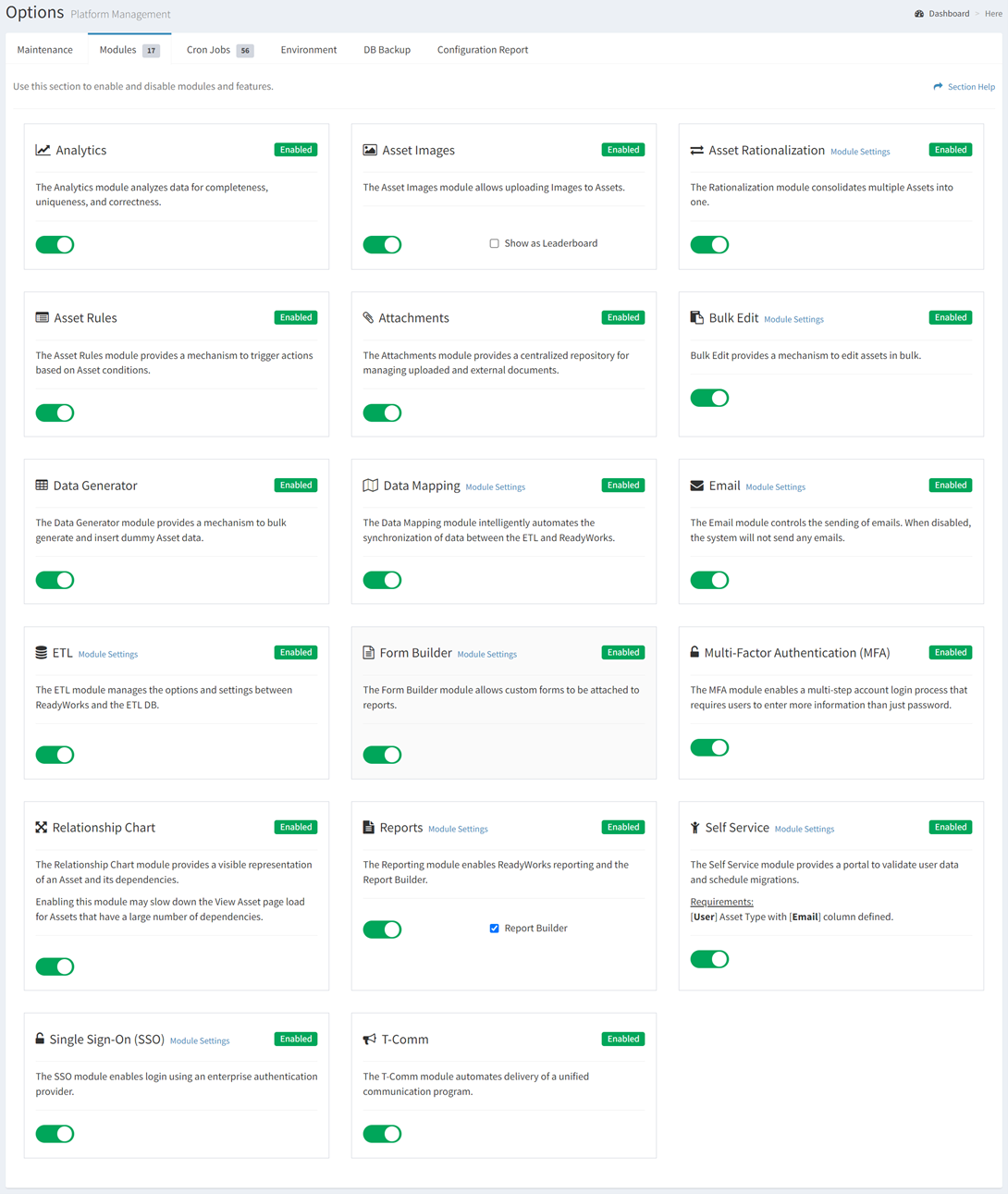
Various modules and features are available in ReadyWorks. The Modules tab on the Options page provides the ability to enable and disable ReadyWorks modules and features. To use a feature within one of these modules, it must first be enabled. Modules should only be enabled if they further the use case being deployed.
Typically Modules are enabled by shifting the toggle from RED to GREEN. In the example below, all modules are enabled.
|
Module |
Description |
|
Analyzes data for completeness, uniqueness, and correctness |
|
|
Upload images to assets, for uses such as OCR |
|
|
Consolidates multiple dissimilar assets into fewer categories |
|
|
Condifitional actions triggered by asset consditions |
|
|
Enables the attachment of uploaded file and/or external documents |
|
|
Provides a mechanism to edit many assets at once |
|
|
Provides a mechanism to bulk generate and insert dummy Asset data |
|
|
Automates the synchronization of data between the ETL and ReadyWorks |
|
|
Controls the sending of emails. When disabled, ReadyWorks will not send any emails. |
|
|
Manages the options and settings between ReadyWorks and the ETL DB |
|
|
Build custom forms to attach to reports |
|
|
Enables a multi-step account login process that requires users to enter more information than just password |
|
|
Provides a visible representation of an Asset and its dependencies |
|
|
Enables ReadyWorks reporting and the Report Builder |
|
|
Provides a portal to validate user data and schedule migrations |
|
|
Enables login to ReadyWorks using your enterprise authentication provider |
|
|
Coordinates triggered communications based on conditions within assets. |
Basic Troubleshooting
See all articlesConnectivity and Server Issues
Problem: Unable to connect to ReadyWorks or related servers.
Steps to troubleshoot:
- Verify that the server where ReadyWorks is installed meets the minimum requirements, and ensure it has access to all necessary data sources.
- Check network configurations to ensure that ReadyWorks can communicate with other systems. Firewalls, lack of necessary credentials (like service account credentials), or DNS issues could block connectivity.
- Use the logs: Navigate to Admin > Logs > System Logs to check for any connectivity errors.
- Confirm that the required MariaDB database is accessible and the necessary ETL jobs are configured correctly.
- Ensure the ReadyWorks server is running, and both the Apache and MariaDB services are started.
Data Import and ETL Issues
Problem: ETL jobs fail or do not pull data as expected.
Steps to troubleshoot:
- Verify that ETL jobs are scheduled properly under Admin > Configuration > ETL.
- Ensure correct API keys or OAuth tokens are configured for API connections.
- Confirm that the REST API connections and job settings (e.g., pagination, query parameters) are correctly defined. Incorrect query parameters or pagination could result in incomplete data imports.
- Review the ETL logs under the Logs section to identify specific job failures.
- Check the staging tables to ensure data is being ingested properly. If data isn’t appearing in staging tables, check the underlying REST API call or database query.
Data Mapping and Transformation Issues
Problem: Data isn't mapping or transforming correctly during the import process.
Steps to troubleshoot:
- Verify data mapping rules under Admin > Configuration > Data Mapping. Ensure that each field from the source is correctly mapped to the corresponding asset type.
- Ensure that SQL queries used for data mapping follow best practices, like proper use of indexing, efficient queries, and normalization.
- For transformations or calculated fields, confirm that all transformations are correctly defined in the SQL query used for mapping.
- Run the mapping on a test dataset to ensure it performs as expected. Check if data appears correctly in the staging tables first, then in the asset tables.
- Verify your query returns unique names for mapping to an asset.
TCOMMs (Triggered Communications) Issues
Problem: Emails or triggered communications are not being sent.
Steps to troubleshoot:
- Ensure that TCOMMs are correctly configured under Admin > Configuration > TCOMMs and that templates are set up properly.
- Verify email settings under the E-mail Module to ensure the SMTP server is correctly set up and functional.
- Review the TCOMM logs for any errors, particularly around email formatting or incorrect recipient information.
- Engage your corporate communications team early to validate compliance with messaging standards.
Wave Management and Automation Issues
Problem: Waves aren’t processing as expected, or assets aren’t being processed correctly in waves.
Steps to troubleshoot:
- Verify that waves are set up correctly and that the relevant assets are grouped in waves for bulk actions.
- Ensure that all automation rules tied to waves are correctly configured under Wave Configuration. This includes checks for data readiness, conditions for wave triggers, and email communications.
- Use wave logs to identify any errors or failures in asset processing. This will give insight into whether certain assets are missing key information or if wave triggers are not functioning properly.
Forms and User Interface Issues
Problem: Issues with forms (e.g., not saving data correctly or missing fields).
Steps to troubleshoot:
- Verify that the Form Builder is correctly configured and that all form fields are properly mapped to their corresponding asset fields.
- Ensure that the appropriate permissions are set up so users can view and submit the form without errors.
- Check for any custom scripts (e.g., JavaScript) that might be causing errors on the front end. Debug these using browser developer tools to see if there are any console errors related to forms.